Track which ads and emails actually work for your business
Use tracking codes in your links to see exactly which marketing brings customers to your door.
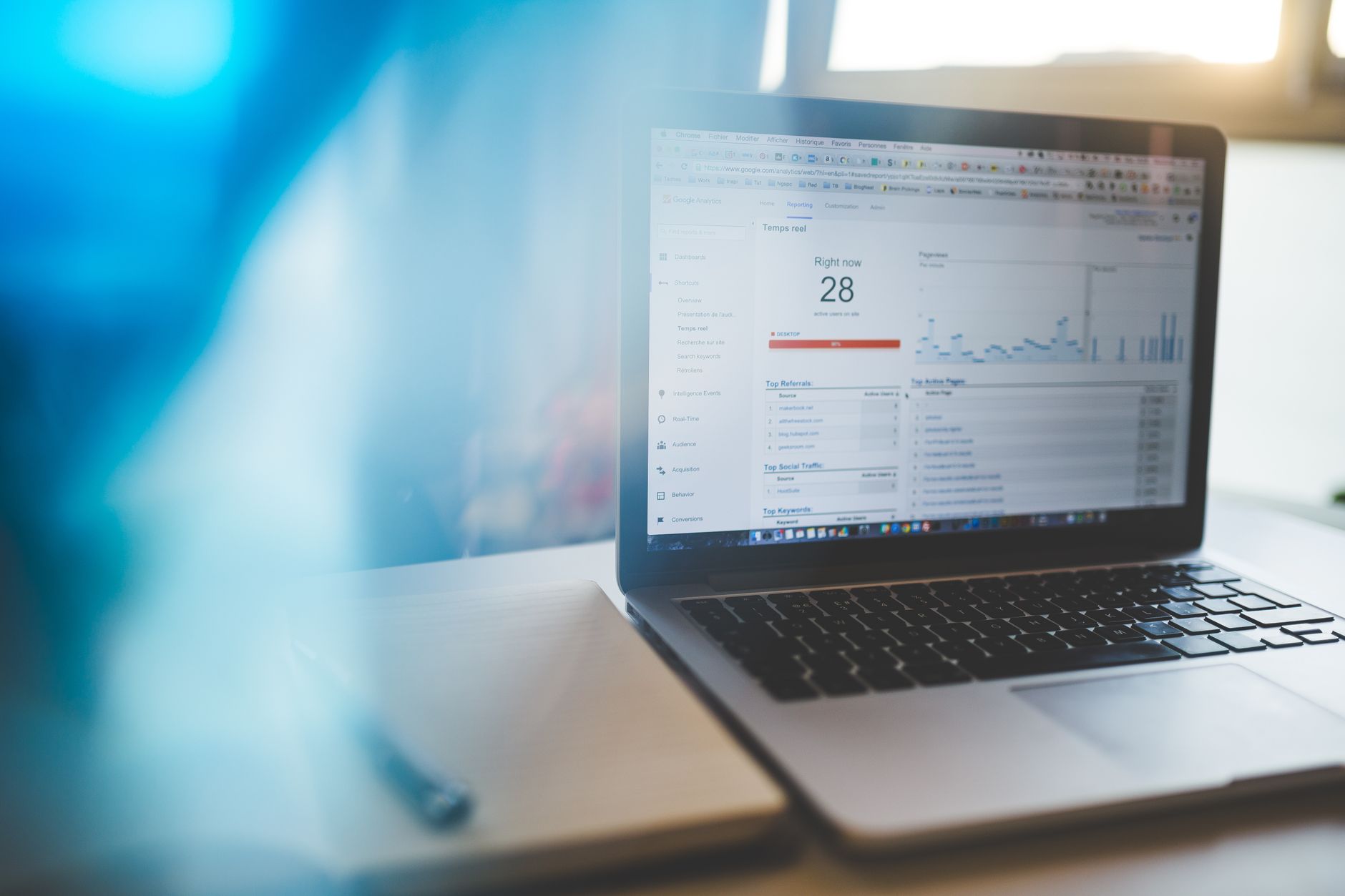
You spend money on Facebook ads, email blasts, and Google ads. You need to know which ones actually drive people to your website or store. The answer is tracking codes—tiny tags you add to the end of your web address that tell you where each visitor came from. Google Analytics reads these codes and shows you the results in a simple report.
Key facts
- Tracking codes, called UTM parameters, attach to your web address and travel with the link when someone clicks it.
- Google Analytics captures this information and displays it in the Traffic acquisition report, showing which campaigns, platforms, and emails sent you visitors.
- You can build these links manually or use Google's URL builder tools to create the links for you.
- Consistency matters: use the same naming system across all your campaigns so your data doesn't get fragmented into separate rows.
- Case sensitivity counts—"email" and "Email" are treated as different sources, so pick lowercase and stick with it.
Tip 1: Start with the three essential tags
Every tracking link needs three pieces of information: where the traffic came from (utm_source), what type of marketing it is (utm_medium), and what campaign it belongs to (utm_campaign). For a Facebook ad promoting a spring sale, your link would look like this: yoursite.com/?utm_source=facebook&utm_medium=paid_social&utm_campaign=spring_sale. The question mark separates the tracking codes from your web address. These three tags give you the foundation for understanding your traffic.
Tip 2: Use one source name per platform
If you run ads on both Facebook and Instagram, don't call them both "social." Use "facebook" for Facebook and "instagram" for Instagram. This way, when you look at your report, you can see which platform actually brought in customers instead of lumping them together. Pick short, lowercase names and use them the same way every single time. Write them down in a spreadsheet so you don't accidentally type "fb" one week and "facebook" the next.
Tip 3: Label your email campaigns separately from paid ads
Email and paid ads are different channels. For an email campaign, use utm_medium=email. For a Facebook ad, use utm_medium=paid_social. This separation lets you compare what actually works: maybe your email list converts better than your paid ads, or vice versa. You can't know unless you tag them differently.
Tip 4: Name each campaign to match your business plan
Use the exact campaign name you use internally. If you're running a "spring_sale" promotion, call it spring_sale in your tracking code too. If you run the same promotion across email and Facebook, use the same campaign name on both. This keeps everything in one row in your report instead of splitting it across multiple rows. Stick with lowercase letters and underscores, no spaces or capital letters.
Tip 5: Use Google's free URL builder tool
You can type your tracking codes manually, but Google offers a free URL builder that does it for you and checks for errors. Search for "Google URL builder" or "campaign URL builder." Paste in your web address, fill in the utm_source, utm_medium, and utm_campaign fields, and it generates the complete link. Copy and paste that link into your ad platform or email. This eliminates typos and saves time.
Tip 6: Check your report weekly
Once you've tagged your links, log into Google Analytics and go to the Traffic acquisition report. You'll see a table showing how many visitors came from each source, medium, and campaign. Spend five minutes each week looking at which campaigns brought the most traffic. After a month, you'll see patterns: maybe your email list is stronger than you thought, or maybe that Facebook ad isn't worth the money. Use this to decide where to spend next month's marketing budget.
Tip 7: Keep a naming system document
Write down your naming rules in a one-page document: what you call Facebook (facebook, not fb), what you call email (email, not newsletter), what you call paid ads (paid_social, not ads). Share it with anyone who helps you with marketing. Consistency is the only thing that matters. One person typing "Facebook" and another typing "facebook" will break your data into two separate lines in the report and make it useless.
Sources
- Collect campaign data with custom URLs - Google Analytics Help
They did the reporting. The writing and the opinions here are ours.
Questions people ask about this
How do I add tracking codes to my Facebook ads?
In Facebook's ad platform, find the destination URL field and paste your complete tracking link there. Facebook will read the tracking codes when someone clicks the ad. You can also use Google's URL builder to create the link first, then paste it into Facebook.
What if I forget to add tracking codes to some campaigns?
Those visitors will show up in Google Analytics under "direct" or "organic" traffic instead of under your campaign name. You won't know which ads or emails brought them. It's worth going back and adding codes to any campaign you want to measure.
Can I use the same tracking link for multiple ads?
You can use the same campaign name across multiple ads, but if you want to know which specific ad performed better, add a content tag to differentiate them. For example, use utm_content=ad_version_1 and utm_content=ad_version_2 to compare two different ad designs within the same campaign.
How long does it take to see results in Google Analytics?
Once someone clicks your tracking link, Google Analytics captures that visit. Wait at least a few days or a week before drawing conclusions about which campaigns work best, since traffic patterns vary by day.
What if my web address already has question marks and other codes in it?
Use an ampersand (&) to separate each tracking code from the others. For example: yoursite.com/?utm_source=email&utm_medium=email&utm_campaign=spring_sale. Google's URL builder handles this automatically.
Do I need special software or plugins to use tracking codes?
No. If you already have Google Analytics set up on your website, you're ready to go. Just add the tracking codes to your links and Google Analytics will capture them automatically.
This piece is about Collect campaign data with custom URLs, published by Google Analytics Help. Go read the original; the opinions here are ours and the reporting is theirs.